Live 12.3 gets Built-In Stem Separation + Splice Integration (Hands-On Guide)
 ReOrder
·Sep 10, 2025
·4 min read
ReOrder
·Sep 10, 2025
·4 min read
The 10-Minute Remix Test (Ableton Live 12.3)
I dropped a classic trance record into Live 12.3’s public beta, hit “Separate Stems,” and—boom—clean vocals, drums, bass, and “other” landed in my project. Two automation passes later, I had a club-ready break with a fresh top line. Here’s how you can do the same (ethically and fast).
What’s new (and why it matters for trance)
Stem Separation (Live 12 Suite + Push 3 Standalone): Split any audio clip into Vocals / Drums / Bass / Other, powered by Music AI (the team behind Moises). Processing runs locally, so you’re not uploading your audio. Great for pulling acapellas, isolating rides/hats, or resampling basslines into new synth lines.
Splice inside Live: Browse, preview, and license Splice sounds directly in Live’s Browser. The new Search with Sound can analyze audio from your project (or a clip you drag in) and suggest samples that match your rhythm and harmony—perfect for finding that missing offbeat hat or riser without leaving the DAW.
(If you produce trance, this is a pure speed upgrade: faster idea capture, cleaner resampling, less tab-hopping.)
How to use Stem Separation (quick start)
1) Update to the public beta (Live 12 license required).
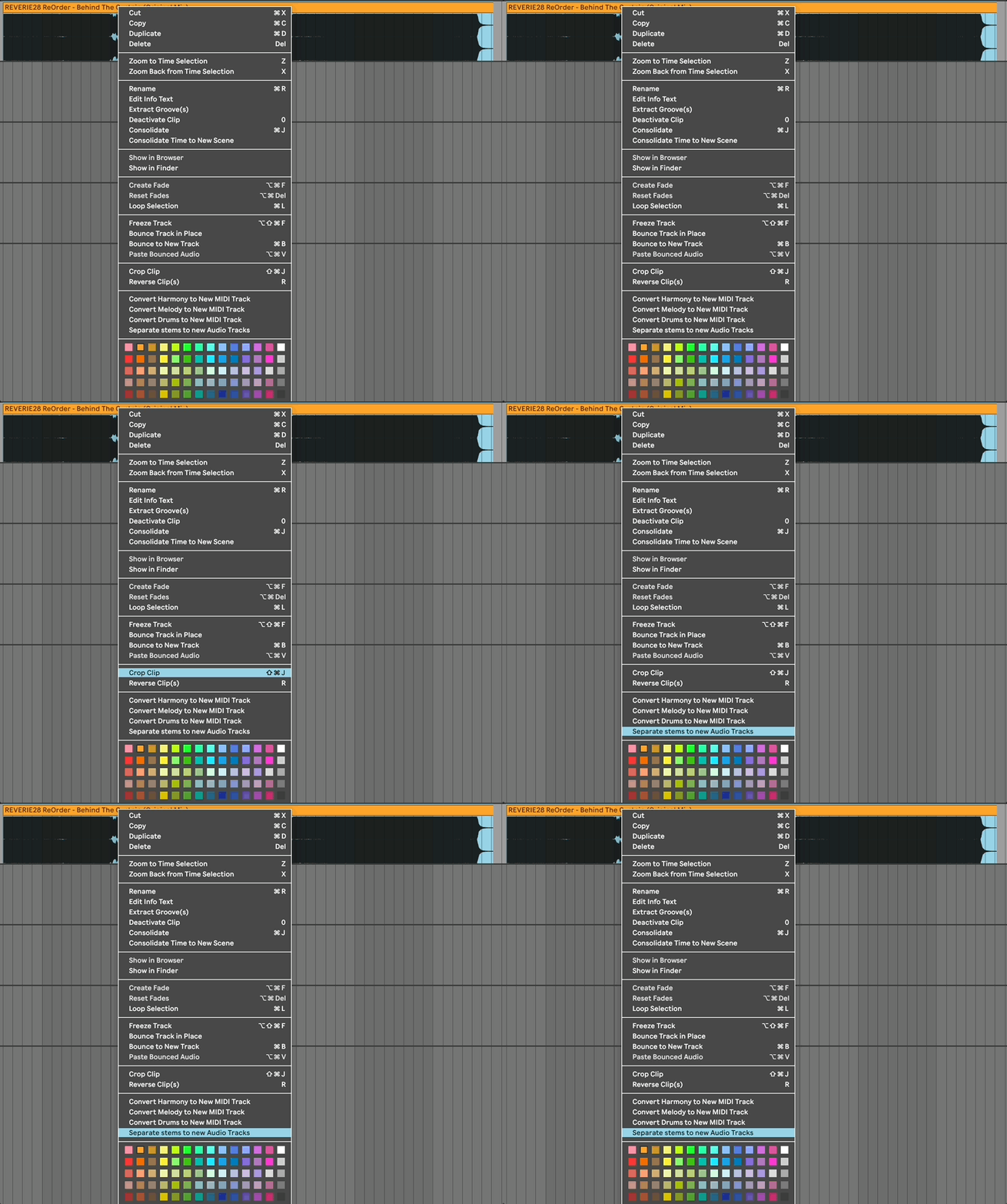
2) Right-click any audio clip in Session or Arrangement view → choose Separate Stems.
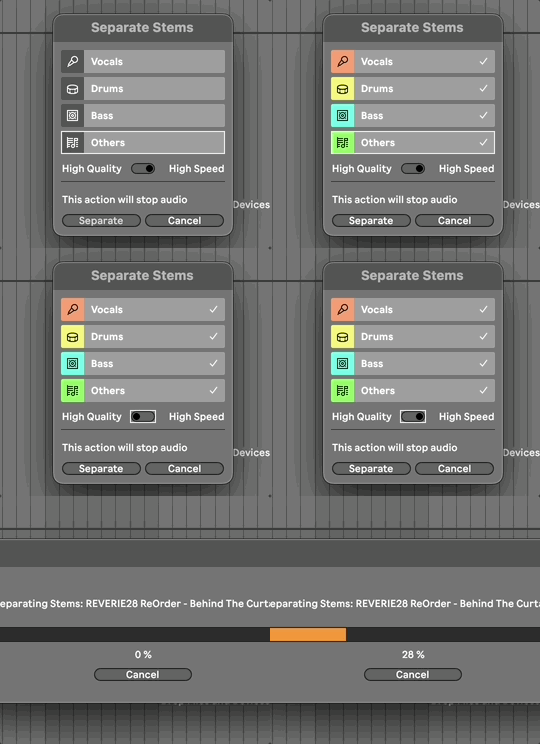
3) Pick what you need (e.g., Vocals and Drums) and let Live generate stems.
4) Resample creatively:
Layer Drums with your own 909 rides to add energy at 1/16th divisions.
Convert the separated Bass to MIDI and re-voice with your go-to synth for tighter trance bass (See: https://readyformasterclass.com/courses/rfm4-trance-psy-trance-bass-ableton-template-4/).
Gate the Vocals with sidechain from your offbeat bass for rhythmic chops.
Pro tip: In the beta, an advanced flag can enable higher-quality separation. Add to Options.txt:
“-_Feature.StemSeparation.HighQuality=True” (copy between the quotes “”)
(Test on a duplicate set; render times may increase.)
How to use Splice in Live (with “Search with Sound”)
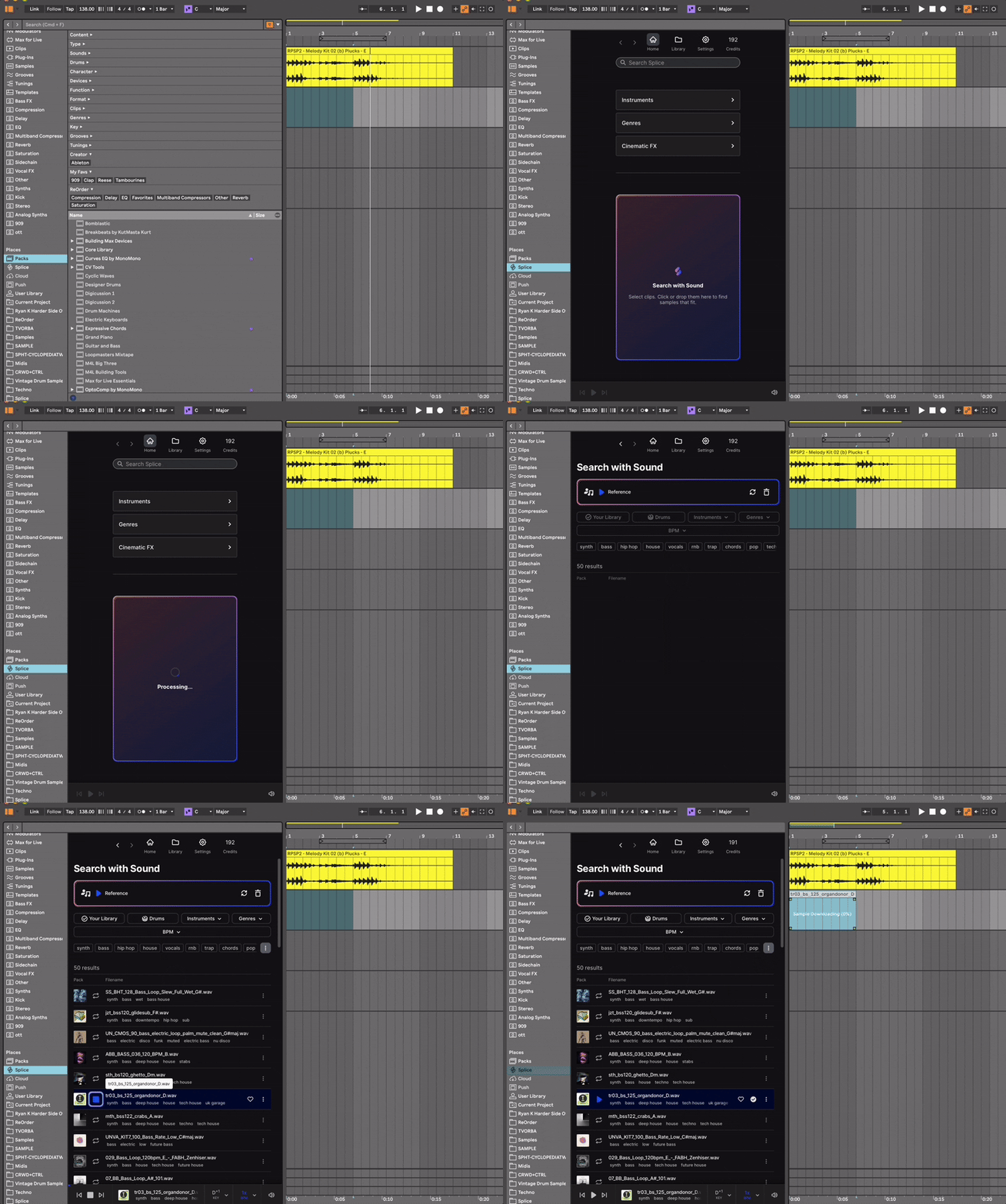
1) Open Browser → Splice.
2) Click Search with Sound, capture project audio (or drag a clip into the panel).
3) Audition results in key and in sync—then drag-drop into your track.
You can preview without a Splice account; licensing/downloading requires a subscription.
4) Build a quick trance toolkit: clap layers that match your groove, tonal risers in key, and fills that slot right into your 16-bar phrasing.
(See: ReadyForMasterclass.com/sound-selection-for-trance)
A workflow you can copy (10-minute remix sketch)
- 00:00–02:00 Import reference track → Separate Stems (grab Vocals + Drums).
- 02:00–05:00 Convert Bass to MIDI → re-voice with Serum or Drift; add Auto Pan-Tremolo for gated movement.
- 05:00–08:00 Use Search with Sound to find a clap + ride that fit your groove; layer with your kit.
- 08:00–10:00 Bounce Group (Drums bus) to commit tone; A/B device states to lock the sweet spot. Print a 16-bar break and drop.
(For deeper arrangement tactics watch this: https://youtu.be/fOWXALB1N7I?si=4btn5mNC45dsm-8g)
Legal & ethical notes (read this)
Stem separation doesn’t grant clearance. If you’re using material from commercial recordings, you still need the right to use it—same as any sample. Keep separated parts for practice, private study, or use licensed/cleared sources.
Payoff
You’ll move from “cool loop” to “structured break + drop” faster: isolate what inspires you, match new sounds in seconds, and lock tone with bounce/A-B. That means more finished tracks and fewer abandoned 8-bar ideas.
Next Step
I’m preparing a full walkthrough set with stems, MIDI, and rack presets tailored for trance bass and atmos pads. Want it? (Subscribe to me on Youtube and get notified when it is out: https://www.youtube.com/@reorderdj/)
Once you’ve absorbed that, you will surely need mastering! But why waste money for expensive mastering engineers if you can learn how to do it yourself using just Ozone 11?
Most online tutorials breeze past the ‘why’ and hand out generic presets. This course does the opposite.
Watch Jan and I fix the low end on an actual trance track inside Ozone 11—every decision, every tweak, explained:
Watch the full masterclass → Mastering Trance with Ozone 11 – by ReOrder & Jan Kristal
See you on the inside,
ReOrder (Tibor)
Sources
- https://www.ableton.com/en/blog/live-12-3-is-coming/
- https://www.ableton.com/en/release-notes/live-12-beta/
- https://help.ableton.com/hc/en-us/articles/22060471916316-Splice-integration-in-Ableton-Live-12-3-Beta-FAQ
- https://cdm.link/ableton-live-12-3-guide/
- https://musictech.com/news/gear/ableton-live-12-3-public-beta/